Following some recent interest in a newsgroup question I answered earlier this year, about how to make Shape Data hyperlinks live in a web page, I thought I'd describe the steps in a little more detail. My discovery of this workaround is due to Chris Roth (aka the VisGuy.com) for pointing out the likely direction to look for a solution, so my thanks to you Chris.
Save as Web Page
Visio's Save as Web Page feature is a very useful tool for publishing your diagrams to a wider audience. It allows you to pan and zoom around your page, view shape level data and adds search and navigation functionality all via the browser.
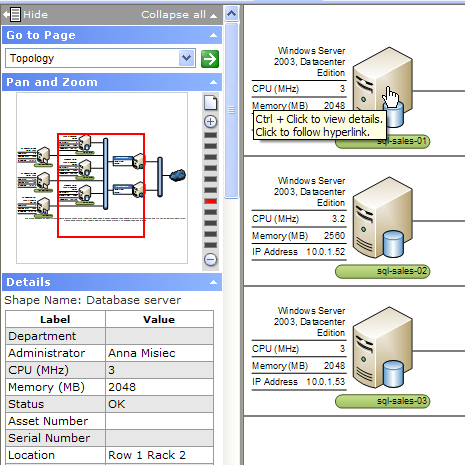
Although there are a number of options that can be set during the save process, the standard output produces a page, as per the above image, consisting of a frame on the left hand side and a main diagram content on the right.
Behind the scenes, what's actually produced is an HTML document and, in the same location as the web page, a folder containing all of its supporting files. Look within this folder and you'll see the following:
- images (representing, amongst other things, your shapes)
- a CSS style sheet (that describes the page's presentation)
- XML files (holding Shape Data)
- JavaScript files (adding various behaviours and functionality to the page)
Hyperlinks - Dead or Alive
Under normal conditions links can be added to shapes via Insert / Hyperlinks... or directly to the Hyperlinks section of the ShapeSheet. These links are then accessible and live in the subsequent Save as Web Page output. However, if you wanted to add, say, 'http://news.bbc.co.uk' to a Shape Data row ('Custom Property' prior to Visio 2007) the result would be just plain text and no link at all. Now, a way to get around this might be to enclose your link in an HTML anchor tag to trick the web page into 'seeing' it as a real link. For example:
But, what you'll see in the web page is, once again, just a plain string:
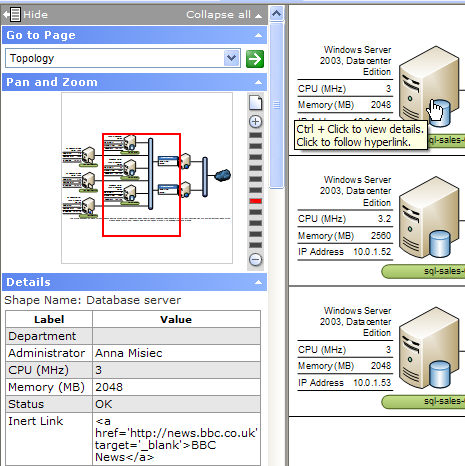
Escaping Links
The culprit here can be found within one of the JavaScript support files - "frameset.js". What's happening is that every time a shape is selected in the diagram page, a JavaScript function (CreatePropTable) retrieves the respective Shape Data and builds the table in the left hand frame under the heading 'Details'. As part of this process, the retrieved strings are cleaned using an HTMLEscape function that replaces any HTML defined characters to prevent them from becoming part of the page's markup. For example '<' becomes '<' and '&' becomes '&'.
Of course, making the link part of the page's markup is exactly what we're trying to achieve. So, to prevent the string from being 'escaped', you just need to modify the part where it gets called and, in order to make use of existing 'http://www...' links, wrap up the string in an anchor tag. The following walkthrough sets out how to go about this:
Walkthrough
1) Save you Visio document using File / Save as Web Page...
2) Find the support folder, which should be in the same location as the web page you just saved, and find the 'frameset.js' file.
3) Right-click on the file and select Open With / Notepad. (NB - You can use any text editor or a more complex application like Visual Studio 2008, which now offers JavaScript intellisense.)
4) Search the file for "if (oPropValue)" (there's only one instance of this)
and replace the following:
if (oPropValue)
{
strValueText = HTMLEscape (oPropValue.text);
}
...with:
if (oPropValue)
{
if (String(oPropValue.text).substring(0,4) == "http")
{
strValueText = "<a href='" + String(oPropValue.text)
+ "' target='_blank'>" + String(oPropValue.text) + "</a>";
}
else
{
strValueText = HTMLEscape (oPropValue.text);
}
}
5) Save the file and close.
If you're new to JavaScript, what's happening here is that at the point where you're handed the Shape Data string (oPropValue), you check the first four characters to see if they equal 'http'. If it does then you just wrap it up in an HTML anchor tag; if not just carry on as normal.
Once you've edited the frameset.js file you can just save a copy in another location and then replace any subsequent ones, generated by the Save as Web Page process, with your edited version.
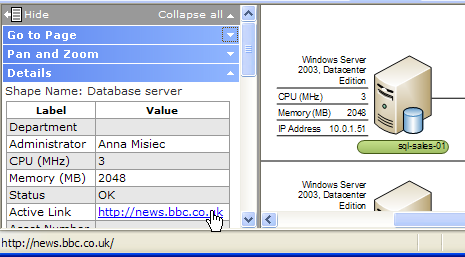
The result of the above can seen in the following image:
Closing thoughts
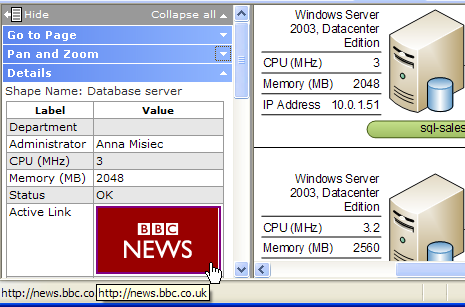
The above will work for both http and https based URLs but, in essence, what you're doing here is searching the Shape Data to match a specific criteria and producing some markup based on the result. Therefore, you're not just limited to straight hyperlinked text but, any other markup you choose. For example, you could search the Shape Data string for the name of an image and, as long as you added the image file to the support folder, this would be displayed as well:
There are probably limits to how far down this route you want to go before starting to think about creating your own Save as Web Page output using the Save as Web Page API, but a lot of work has already gone into the JavaScript end and it's worth getting to know it a little better.
For other interesting blogs surrounding hyperlinks in web output check out David Parker's recent post Importing Hyperlinks into Visio Shapes and Chris Roth's Customized Visio HTML Export.

What shape are you using to create this diagram? In particular, the Server Image with the text next to it stating the properties of the server.
Posted by: Bill | Wednesday, 02 January 2008 at 21:04
Hello Bill,
I've just used the IT Asset Management sample diagram (Help / Sample Diagrams), which is part of Visio Professional 2007.
The server shapes you can see are Database server shapes (File / Shapes / Network / Network / Servers), while the surrounding data and icons are 'Data graphic' shapes, which is a new feature in 2007 Pro.
There's an overview of Data graphics over at http://office.microsoft.com/en-gb/visio/HA100487841033.aspx, which deals with how to use the built-in set, or you can create your own custom data graphic shapes as per the Visio Insights blog:
Text Callouts - http://blogs.msdn.com/visio/archive/2007/05/01/make-your-own-data-graphic-text-callouts.aspx
Data Bars - http://blogs.msdn.com/visio/archive/2007/06/01/make-your-own-data-graphic-data-bars.aspx
Icon Sets - http://blogs.msdn.com/visio/archive/2007/07/20/make-your-own-data-graphic-icon-sets.aspx
and this article on MSDN:
http://msdn2.microsoft.com/en-us/library/aa468596.aspx
Best regards
John
Posted by: John Goldsmith | Thursday, 03 January 2008 at 09:21
Hi John,
Many thanks for the elegant solution and the clear concise way you dscribe things. This particular solution almost answers an issue that has been driving me mad for weeks - which is why I decided to write. Please accept my apologies if this is not the correct way to contact you, but I wondered if you would look into a similar problem as there seem to be quite a few people also looking for a fix.
As background - I publish various Visio docs on our company intranet using the "save as web page" facility in Visio. The reason I use this method is because of the elegant framing and zoom functionality; the Details functionality; and of course the ease of production - given that I am not a coder.
However, my issue is that although I can present my web pages produced from the Visio drawings into the correct web frame on my intranet, I cannot make hyperlinks from these pages to other documents publish to the same frame. Like many other people I currently have to make do with either using the whole IE window for the new hyperlink or target a totally separate window for my document. Whilst this works, it really frustrates me that I cannot continue to let users use the Index frame of the intranet to continue their navigation. All of my current research and attempts to cure this have been fruitless.
Hopefully this small issue will whet your appetite as a problem worthy of producing a solution for. Please feel free to contact me if more description is required, and thanks again for the teriffic resource pages.
Best regards
Steve B
Posted by: Steve Bennett | Wednesday, 06 August 2008 at 12:57
Hello Steve,
Thanks for your comment. If I understand you correctly you want your external links to open in the main frame rather than in a new window. Is that right?
If that's the case then you can change the target attribute's value from '_blank' to a frame name, which in this case is 'frmDrawing'. However, this mucks up the browser's back button and subsequent links will still open in a new window.
I'm afraid I don't have a lot of spare time to investigate as I'm just about to head off on holiday, but have a look at this link, which may help and of course post a question in the Visio newsgroups.
http://www.456bereastreet.com/archive/200605/using_javascript_instead_of_target_to_open_new_windows/
Hope that helps.
Best regards
John
Posted by: John Goldsmith | Wednesday, 06 August 2008 at 14:40
John,
Thanks for the prompt response. Your assumption is almost correct. I'll try and expand if I may. My Intranet has 3 frames. Title, Menu, and Content. I currently publish my Visio output webs to the Content frame which places the Visio frame set as a subset within Content. This method then leaves the Menu frame still available for Intranet navigation.
However, when I hyperlink to any other documents from the visio webs, I would like those documents to be published to my Intranet's Content frame. I'm happy to overwrite the Visio output as my users can then either "back out" of the new document, or re-navigate to the parent Visio web pages using the Menu.
At present the hyperlinked documents are either published over the top of all 3 of my intranet frames or of course to a new window. I have tried several attempts to edit the target frames of _blank and _top etc for my Hyperlinks in the visio produced code and of course the Frame cell in the Shapeheet - but to no avail. Also as you suggest I have tried to target the visio produced frame sets - again with no success.
Your solution published above does offer me a halway house, but relies on users having to "Ctrl-Click" then use the link I can now publish. I can even publish hyperlinked documents to the Content frame of the Intranet. Which is progress indeed.
I will investigate the link kindly offered. Thank you. In the mean time have a great holiday. I hope you come back to a post with the solution. If not - I'd appreciate any other guidance.
Best regards,
Steve B
Posted by: Steve | Wednesday, 06 August 2008 at 17:28
Hi John,
Due to you nudging me in the right direction, I managed to find a solution. The answer turned out to be quite simple in the end. Here's the full method for completeness.
Preparation: Design your Visio Drawing and add the Hyperlinks as usual. Then open the Stylesheet for the objects you wish to target the frames for, and amend NewWindow to True if a new window is required. Or in my case ensure that is still set to False (i.e. no new window required). Next save the drawing using the Save as Web Page option. During this phase I use the Publish button rather than the Save button, and I ensure that the settings are as I require. i.e. Details, Goto Page, Search Pages, and Pan and Zoom are the only selections I use in the General Tab. Also in the Advanced Tab I select VML, JPEG Alternate format, and I target the size of the drawing to 1024x768.
Fix: After publishing as a Save as Web Page we get the main HTM page and the Files directory. Open in an editor the "frameset.js" file within the Files directory as you explain above. Then search for "top.location" and replace with "self.location". I had 2 instances in all my tests.
You can now use the main.HTM page with a frame reference in your Intranet etc. and any Hyperlinks will open in the same frame.
I hope this helps. Thanks again for your assistance.
Regards,
Steve B
Posted by: Steve B | Thursday, 07 August 2008 at 15:34
Hello Steve,
Well I'm back from holiday and glad to find that you've found a solution.
Thanks very much for taking the time to post the details.
Best regards
John
Posted by: John Goldsmith | Monday, 25 August 2008 at 19:09
Hi,
I am publishing my Visio diagram to a web page.
I was wondering if you could tell me how to make a 'hint' come up when I run over a shape with my mouse (once it is published of course).
Regards,
Mike Marriott
Posted by: Michael Marriott | Tuesday, 17 March 2009 at 06:09
Hello Michael,
Are you just looking for some kind of tooltip on mouseover or something more involved? I am planning a future post to look at full popups that will contain stylable html, but in the meantime, have you seen this post, which covers tooltips? http://visualsignals.typepad.co.uk/vislog/2009/02/changing-the-save-as-web-tooltip.html
Posted by: John Goldsmith | Tuesday, 17 March 2009 at 08:40